
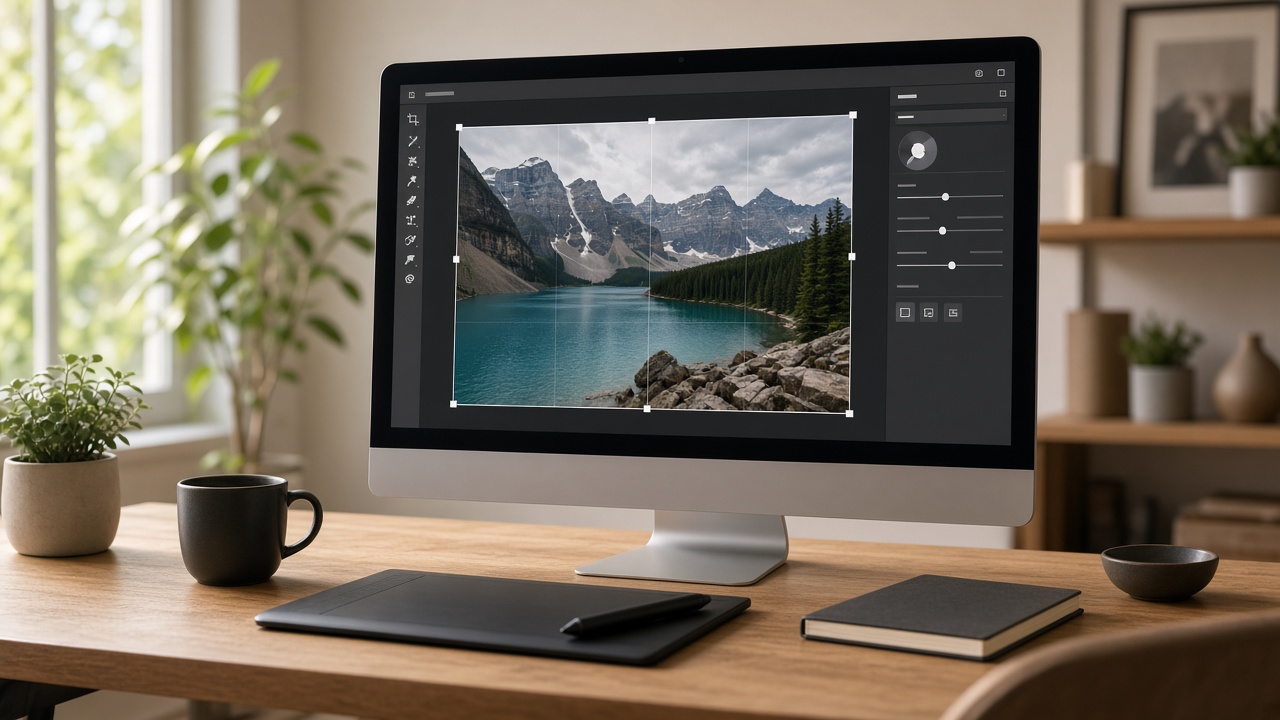
SyntVision Editor is the in-browser workspace where you turn a Gallery image into something you can actually publish: cropped for Stories, captioned for an ad, cleaned for print, or saved privately for later. This guide explains what the Editor is, who it is for, and how Free and Pro differ — without marketing fluff.
What problem the Editor solves
Downloading a beautiful AI image is only half the job. Real projects need different aspect ratios, readable headlines, quieter backgrounds, or a version that fits a mug template. Jumping between three apps usually means lost layers, messy filenames, and rights confusion.
SyntVision Editor keeps the loop short: pick from Gallery → edit in the browser → export or save to your account Library.
Core tools you will use most
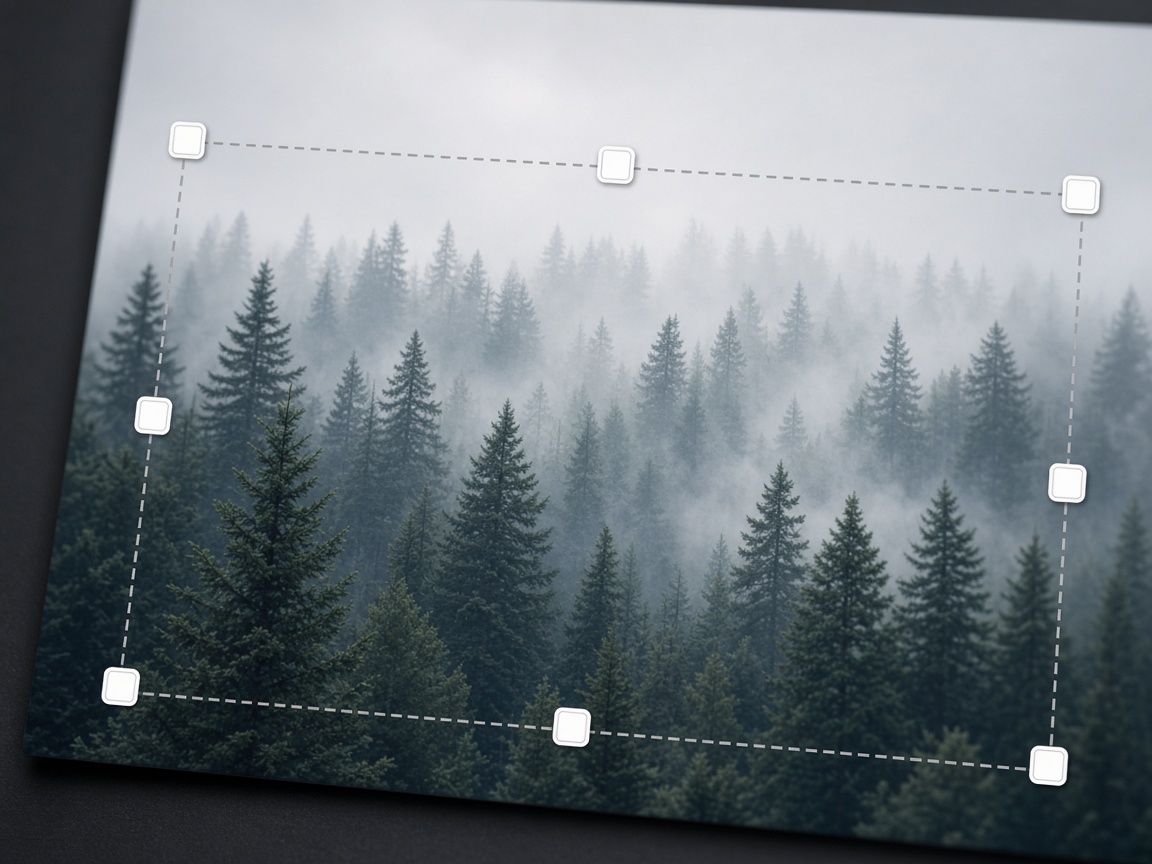
- Crop and straighten — prepare square, vertical, or wide frames for social and print.
- Text and stickers — add a headline, price, date, or simple shape without leaving the page.
- Filters and light adjustments — match a brand mood or calm an oversaturated AI look.
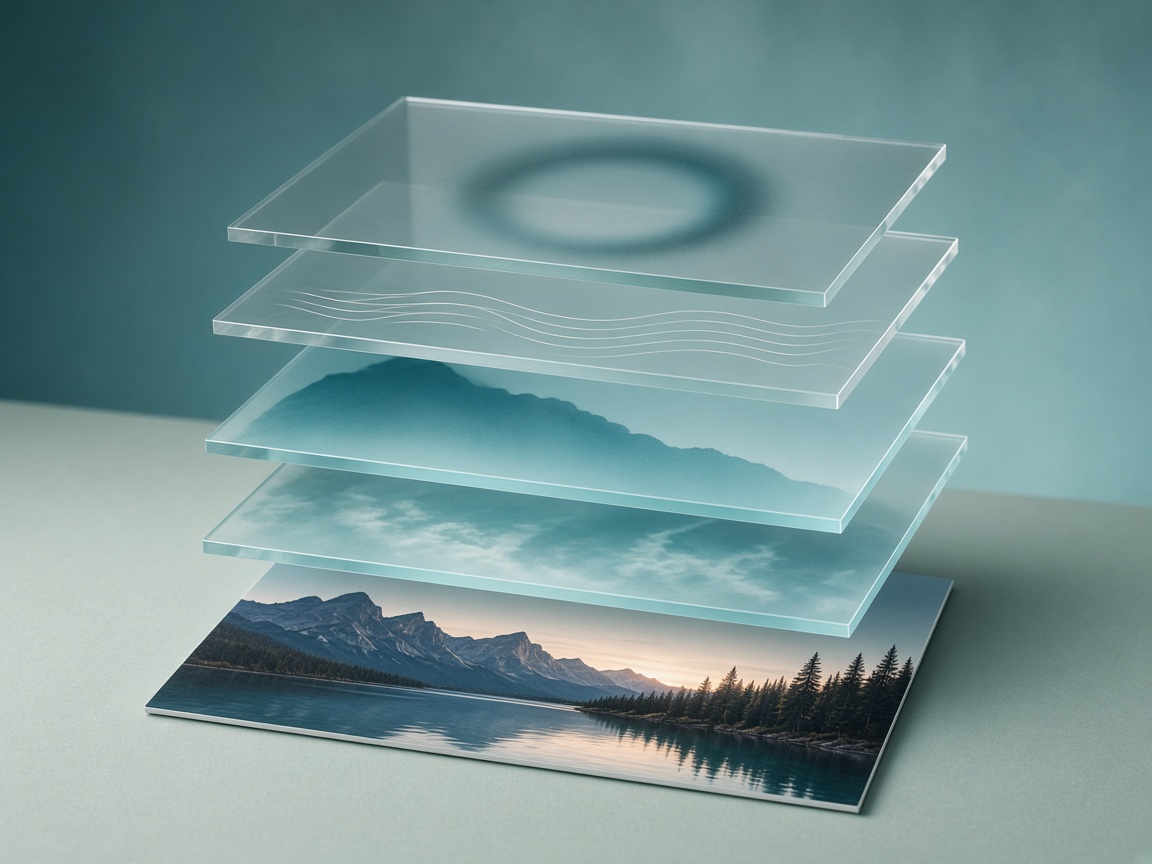
- Layers — keep text editable while you experiment.
- Export — download a finished file when you are ready to post or print.
- AI-assisted tools on Pro — features such as upscale or server background remove use AI credits when enabled on your plan.
Free vs Pro in plain language
Free is meant for trying the Editor and light personal projects. You get the basic creative tools and a smaller private storage limit for saved images.
Pro is for people who edit often: larger Library storage (up to the Pro limit shown in your account), access to Pro-oriented features, and AI tools that spend credits separately. Credits are not the same thing as the subscription — the plan unlocks access; credit packs pay for heavier AI actions.
See live plan details on Billing after you log in. Prices and pack sizes can change; always trust the Billing page over any screenshot in an old article.
A simple first project (10 minutes)
- Open Gallery and choose an image with clear subject and some empty space for text.
- Use Edit / open in Editor from the product flow.
- Crop to the size you need (for example 1080×1350 for a feed post).
- Add one short headline — five to eight words maximum.
- Export a copy for posting, and save a private version to Library if you want to revise later.
That single loop teaches you more than reading feature lists.
When you should not use the Editor
If you need complex multi-page print layouts, packaging dielines, or heavy photo compositing with dozens of stock layers, a desktop design suite may still be better. SyntVision Editor is optimized for fast, single-image creative work tied to our Gallery and account storage — not for replacing every design tool on your computer.
Privacy and your files
Images you save to Library are tied to your account. Treat them like project files: rename them, use folders when available, and delete drafts you no longer need so you stay under your storage limit. Storage usage appears on Overview and Library in My Account.
How Editor fits with the rest of SyntVision
- Gallery supplies the starting visual.
- Editor adapts it to a job.
- Library keeps your private results.
- Billing manages Pro and AI credits.
- License text on product pages tells you what you may do with the original asset.
How to use this on SyntVision
Start at the Editor landing page, pick an image from Gallery, and keep finished work in Library. If you need more storage or AI tools, open Billing.
A week-one practice plan
Day 1: crop three Gallery images into Story size without adding text. Day 2: add one headline to each and compare readability. Day 3: save only the best version of each project to Library and delete the rest. Day 4: export for a real post or print proof. Day 5: open Billing only if storage or AI tools blocked you. This cadence teaches the product faster than scrolling feature pages.
Professionals often underestimate how much time they lose to file chaos. SyntVision Editor is most valuable when you treat Library like a light DAM: clear names, fewer duplicates, intentional deletes. The tool cannot organize taste for you, but it can remove friction between idea and publishable file.
Accessibility and clarity
High contrast text helps more people read your graphic. Avoid tiny script fonts on busy skies. If your audience includes older readers, prefer larger type and simpler layouts. Good accessibility is also good marketing — confused viewers do not click.
Detailed walkthrough: from Gallery click to export
Begin on a Gallery product page and look at the composition before you fall in love with colors. Ask whether the subject has room for the words you need. If the face already fills the frame, a Story crop may cut the chin. Choose another image. Patience at selection beats heroic editing later.
When the Editor opens, set crop first. Then adjust light if the image feels heavy. Only then place text. People reverse that order constantly and paint themselves into a corner. After text, zoom to 100 percent and check edges for stray artifacts. Export a web-sized file for posting and keep a cleaner master in Library without promotional copy if you expect to reuse the visual next month.
If an AI tool is available on your plan, use it for a specific defect — background clutter, soft edges — not as a ritual on every file. Credits are finite. Taste is not a credit problem.
Collaboration without chaos
When a teammate needs the same asset, share the Gallery product URL plus your Library filename convention. Do not email five unlabeled PNGs. If clients review work, export a medium preview and keep the layered or editable master private until approval. Clear process looks like professionalism even when the stack is lightweight.
If you remember only one thing, remember this: crop for the job first, decorate second, and archive a clean master in Library so future campaigns do not start from a locked promotional export. That habit compounds.
Keep experimenting with small, finished projects rather than endless drafts. Finished work teaches faster, fills your Library with reusable masters, and gives Search and human reviewers a clearer picture of what SyntVision is for: practical creative output with understandable tools and rules.