

LinkedIn audiences scroll past generic handshake photos. SyntVision Gallery includes workspaces, subtle technology, leadership moods, and abstract professionalism without default stock clichés—if you select thoughtfully and edit with restraint. This guide covers single-image posts, document carousel covers, and link previews that feel credible on professional feeds.

What reads as stock on LinkedIn
Over-smiled groups in glass towers, exaggerated high-fives, fake whiteboard diagrams.
Avoid images that could belong to any industry unless the copy carries specificity.
Better Gallery search instincts
Browse Gallery for calm desks, focused hands, architecture, neutral portraits, and abstract textures.
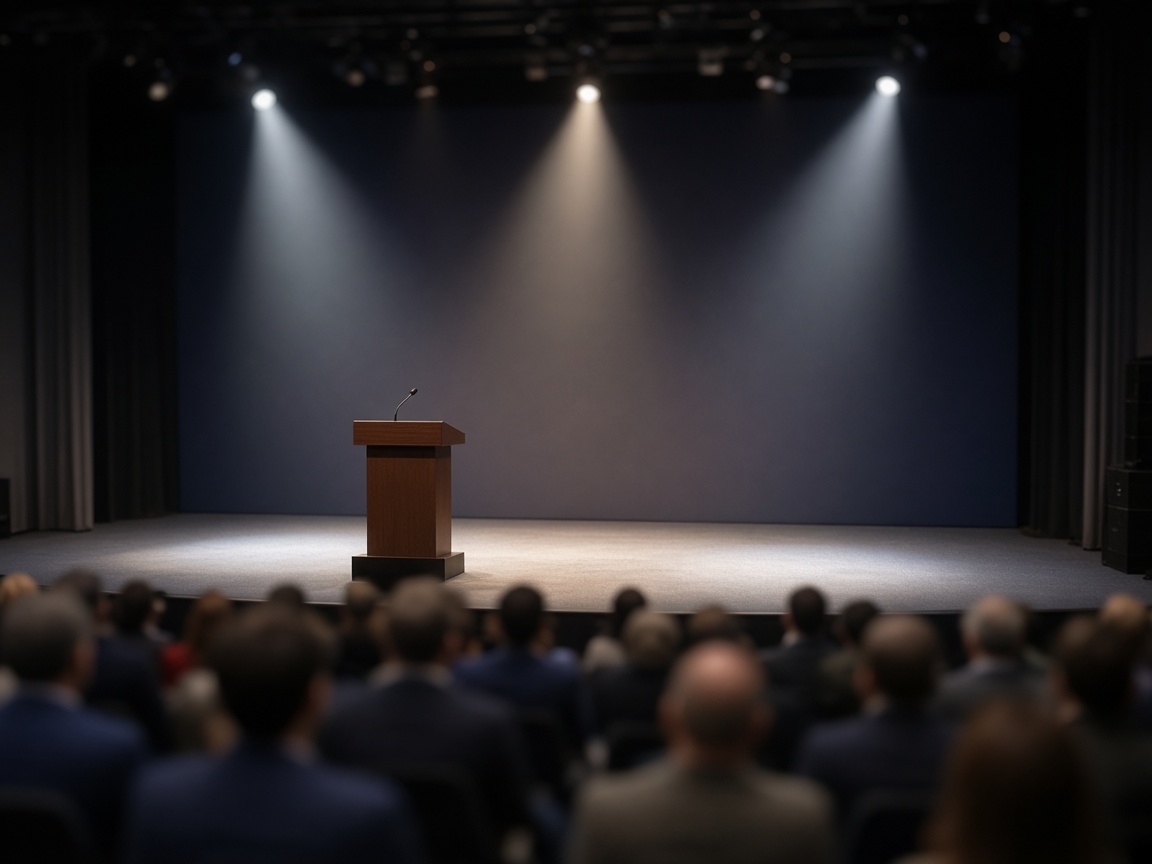
Match industry tone: creative agencies can go bolder; finance and law favor muted palettes.
Type and data on professional posts
One stat or quote per image.
Use Editor sparingly—LinkedIn already provides text space.

Ensure numbers in the image match the post body exactly.
Carousel PDF covers
First slide is a thumbnail in many views.
Large title, minimal imagery, high contrast.
Save cover master to Library for series branding.
Personal brand vs company page
Founders can use warmer portraits; company pages often need product or team context.
Keep fonts consistent quarter to quarter.
Compliance and claims
Do not imply endorsements or results you cannot substantiate.
Commercial posts still need license verification on SyntVision product pages.
How to use this on SyntVision
Browse matching visuals in the SyntVision Gallery, open a favorite image in the SyntVision Editor to crop, add text, or export, and keep private edits in your account Library. Check each product page for license details before commercial use.
Build two Library templates: announcement and thought-leadership quote. Rotate Gallery backgrounds monthly to avoid visual fatigue.
Employee advocacy vs corporate voice
When employees share company posts, provide optional Gallery backgrounds and quote templates they can use without opening brand files they might mis-edit. Simpler templates increase adoption; adoption beats perfect lockdown.
Event and webinar graphics
Speaker headshots plus Gallery ambient backgrounds often look more credible than full-stock “conference room” scenes. Keep speaker names spelled correctly in Editor—LinkedIn comments fix typos publicly.
Avoid engagement bait visuals
Arrows, fake play buttons, and misleading “breaking news” strips erode professional trust. Let the content promise match the article or landing page you link.
Deeper practice notes
Great creative systems are boring on purpose. You repeat a short checklist until it becomes muscle memory: choose with intent, crop for the real placement, add as little decoration as needed, save a master, export a child file, confirm rights, publish, measure one metric, tidy Library. Whenever a step feels glamorous but unclear, return to that checklist.
Most failed projects skip selection. They grab the first colorful thumbnail, then try to invent margins that do not exist. Spend an extra minute in Gallery. The catalog is large enough that a better composition is usually a scroll away. Your Editor time should refine a good choice, not rescue a bad one.
Write the audience and the offer in plain language before you touch type tools. If you cannot say the message in one breath, the image will not say it either. Complexity belongs on the landing page. The creative’s job is recognition and clarity at a glance, especially on mobile data connections and small screens.
When you collaborate, document the product URL, the Library master name, and the export names used in ads or print. That tiny text file prevents legal and operational confusion later. If a platform asks where an asset came from, you answer in seconds instead of reconstructing history from memory.
Finally, protect your future self. Delete failed experiments. Keep masters without burned-in dates when you expect reuse. Review storage monthly. Upgrade plans because of evidence, not anxiety. SyntVision works best as a calm loop — Gallery, Editor, Library, publish — repeated with care.
Pre-publish checklist for this workflow
Re-read your brief for “Professional LinkedIn Visuals Without Looking Stocky” and confirm the export matches the channel you named—not a convenient ratio that happened to be open in Editor.
Open Gallery only when the current Library master cannot be cropped or typed into shape; swapping backgrounds mid-campaign breaks audience recognition.
Store the approved file in Library with campaign or event names before uploading to schedulers, email tools, or print vendors.
If results disappoint, test headline or audience changes before assuming the background failed—many creatives underperform for copy reasons while the Gallery pick was sound.
Documentation habits
Note the Gallery product URL, export date, and designer initials in a one-line readme. Months later, that line answers licensing and reprint questions without guessing.
When collaborators ask which asset supplied a background, answer from filenames and notes, not memory. Handoffs stay calm when evidence is obvious.
Storage and plan reality
Variant exports accumulate quickly when one master feeds several ratios. Review Library monthly, delete failed drafts, and open billing only when storage trends justify a change—not every single export.
Upgrade plans because of measured need: recurring batch work, client volume, or retained masters—not because one busy week created temporary clutter you can prune.
Return to the core loop whenever you feel stuck: browse Gallery with a job in mind, refine in Editor, archive masters in Library, confirm licenses, publish with restraint, and tidy files afterward. Repeating that loop with care will outperform any single trick inside an editing tool.
Use this guide as a living checklist. Revisit it after your next real project, note where you skipped a step, and adjust your habits. Small process improvements compound across every future export you make on SyntVision.