
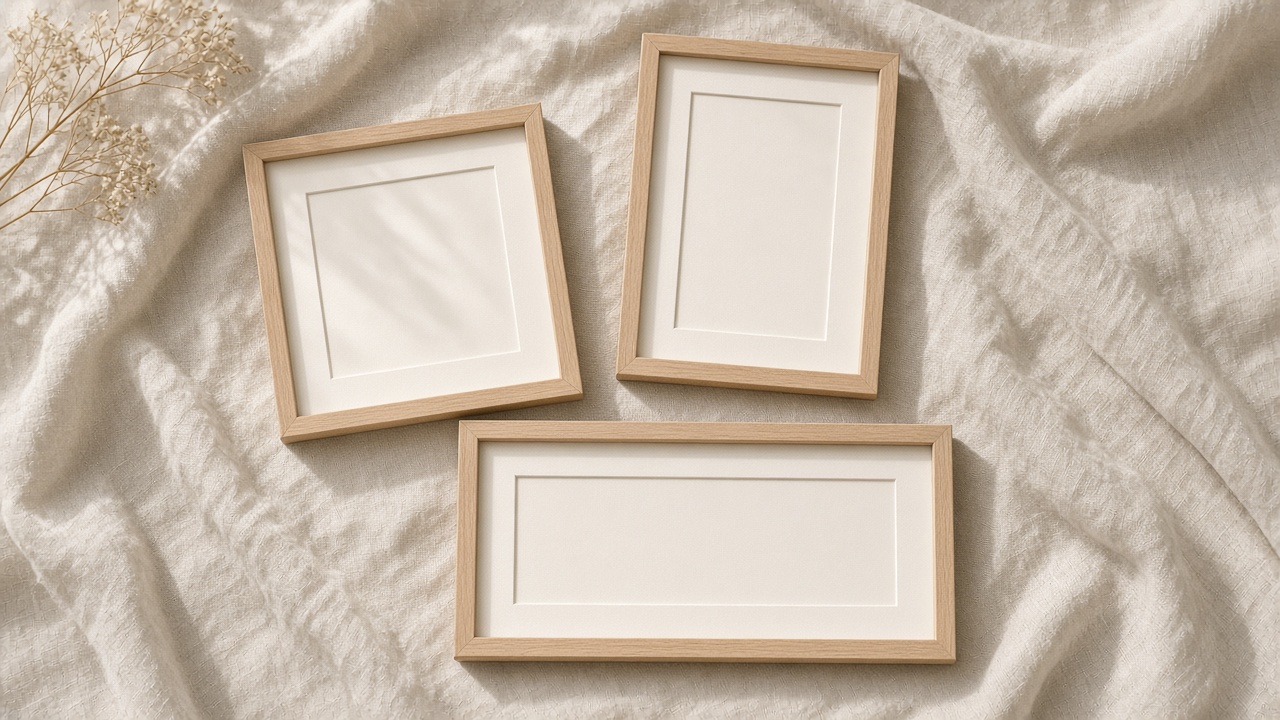
Aspect ratio is the contract between your image and the place it will live. SyntVision Gallery offers many compositions; your job is to match each asset to the ratio the platform expects before you invest in typography. Cropping after the fact costs pixels, time, and sometimes the whole composition. This guide maps common ratios to practical Gallery and Editor choices.
Core ratios creators use daily
Pick the ratio at selection time. Scroll Gallery asking whether the subject survives that shape.
- 1:1 — Instagram feed, Facebook feed, many marketplace thumbnails
- 4:5 — portrait feed with extra vertical room
- 9:16 — Stories, Reels covers, vertical ads
- 16:9 — YouTube thumbnails, blog heroes
- 2:3 — Pinterest pins, some print invites
- 3:1 or wider — email headers and site banners
Square: safe default, unforgiving center
Square crops pull attention to the middle. Symmetrical scenes, product-on-table shots, and centered portraits thrive; wide panoramas lose their wings.
In Editor, crop 1:1 before adding text so you see true margins. Save square masters to Library when you will reuse them for ads and avatars.

Vertical: feed portrait vs full screen
4:5 is slightly shorter than 9:16. A master cropped for Stories can often trim to 4:5, but not always the reverse.
If both placements matter, design for 9:16 first, then derive 4:5 by careful top or bottom trim—not horizontal squeeze.
Wide: hero images and thumbnails
YouTube thumbnails need readable faces and short words at small size. Choose Gallery images with subject in left or right third, leaving opposite space for headline.

Email headers want calm center bands; chaotic detail across the full width fights your newsletter title.
Workflow: one master, many children
- Select Gallery image with resolution headroom.
- Save an uncropped or lightly cropped master to Library.
- Export child files per ratio with consistent naming.
- Never upscale a tiny child back to print size.
Ratio mistakes that waste Editor time
Designing text on a horizontal master, then cropping vertical and discovering the headline sits on a face.
Using platform fit modes that add blurred bars—fine for memes, weak for brand ads.
Mixing ratios in one carousel without visual continuity so the swipe feels jarring.
How to use this on SyntVision
Browse matching visuals in the SyntVision Gallery, open a favorite image in the SyntVision Editor to crop, add text, or export, and keep private edits in your account Library. Check each product page for license details before commercial use.
Use Editor crop targets such as 1080×1080, 1080×1350, 1080×1920, and 1280×720. Store each export with the ratio in the filename.
Before upgrading storage, review billing against how many ratio variants you truly ship weekly.
Pinterest and print crossover
Pins favor 2:3 vertical with clear top-to-bottom flow. When a Gallery image might serve both pin and print, pick gentle borders and verify license terms for your commercial path.
Teaching teammates
Send one diagram showing safe zones per ratio. Document which Library master owns each ratio set so handoffs stay clean.
Aspect ratio cheat sheet for teams
Pin the cheat sheet inside your project folder: feed square, feed portrait, Story, pin, YouTube, email banner. When a client asks for “just one file for everything,” you can explain which two ratios cover eighty percent of cases (usually 1:1 and 9:16) and which need a separate export. That conversation saves rework after approval.
Photographers and illustrators joining mid-project should inherit ratio names from your Library, not invent new suffixes. Consistency beats cleverness when six people touch the same campaign.
Resize traps in third-party tools
If you finish layout in another app, disable “stretch to fit” on the SyntVision layer. Lock aspect ratio when scaling down only. Upsizing a social export for print is a hard stop—return to the Library master and export at print width from Editor instead.
Deeper practice notes
Great creative systems are boring on purpose. You repeat a short checklist until it becomes muscle memory: choose with intent, crop for the real placement, add as little decoration as needed, save a master, export a child file, confirm rights, publish, measure one metric, tidy Library. Whenever a step feels glamorous but unclear, return to that checklist.
Most failed projects skip selection. They grab the first colorful thumbnail, then try to invent margins that do not exist. Spend an extra minute in Gallery. The catalog is large enough that a better composition is usually a scroll away. Your Editor time should refine a good choice, not rescue a bad one.
Write the audience and the offer in plain language before you touch type tools. If you cannot say the message in one breath, the image will not say it either. Complexity belongs on the landing page. The creative’s job is recognition and clarity at a glance, especially on mobile data connections and small screens.
When you collaborate, document the product URL, the Library master name, and the export names used in ads or print. That tiny text file prevents legal and operational confusion later. If a platform asks where an asset came from, you answer in seconds instead of reconstructing history from memory.
Finally, protect your future self. Delete failed experiments. Keep masters without burned-in dates when you expect reuse. Review storage monthly. Upgrade plans because of evidence, not anxiety. SyntVision works best as a calm loop — Gallery, Editor, Library, publish — repeated with care.
Return to the core loop whenever you feel stuck: browse Gallery with a job in mind, refine in Editor, archive masters in Library, confirm licenses, publish with restraint, and tidy files afterward. Repeating that loop with care will outperform any single trick inside an editing tool.
Use this guide as a living checklist. Revisit it after your next real project, note where you skipped a step, and adjust your habits. Small process improvements compound across every future export you make on SyntVision.